
Friend Constellations are an easy way to organize and find your favorite friends in Sky. You can use the Relationship Menu to access the friends you’ve made along your journey!
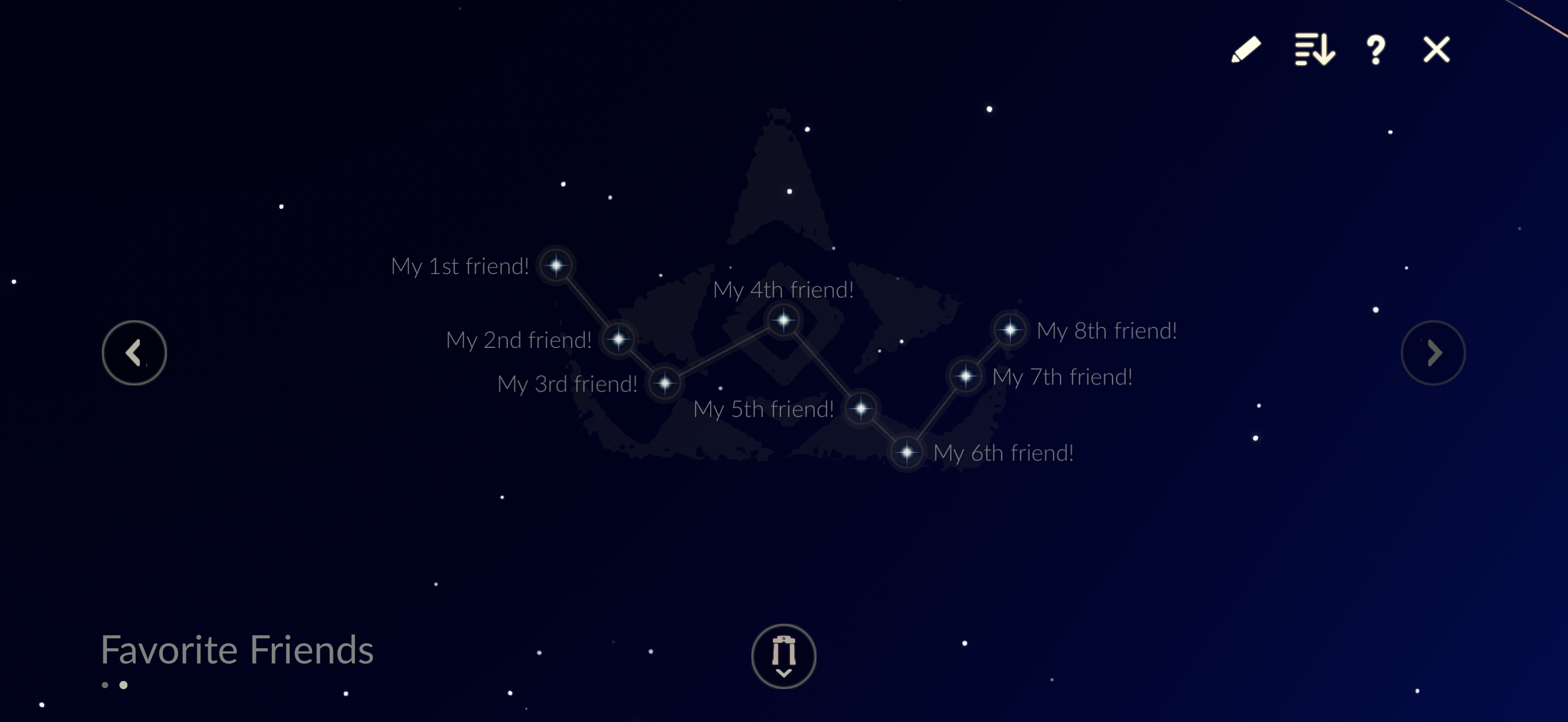
Where do I access Friend Constellations?
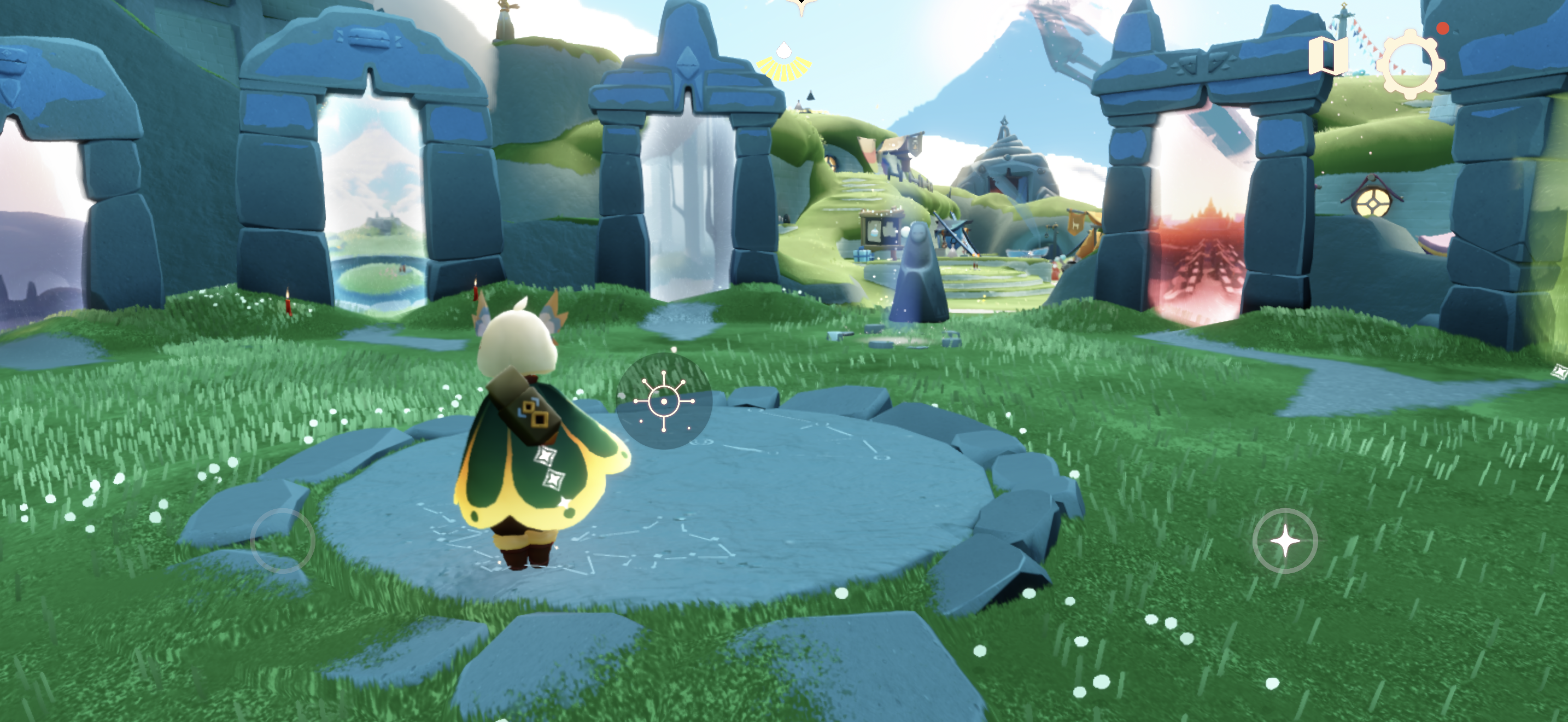
You can access and edit Friend Constellations from Home and Aviary Village at the Constellation table.
Note: When interacting with the Constellation table, the Spirit Constellation might open first. To open the Friend Constellation, tap on the icon at the top of the screen.
A List View button in the upper-right corner of the Friends Constellation page allows you to switch from Constellation view to List view.
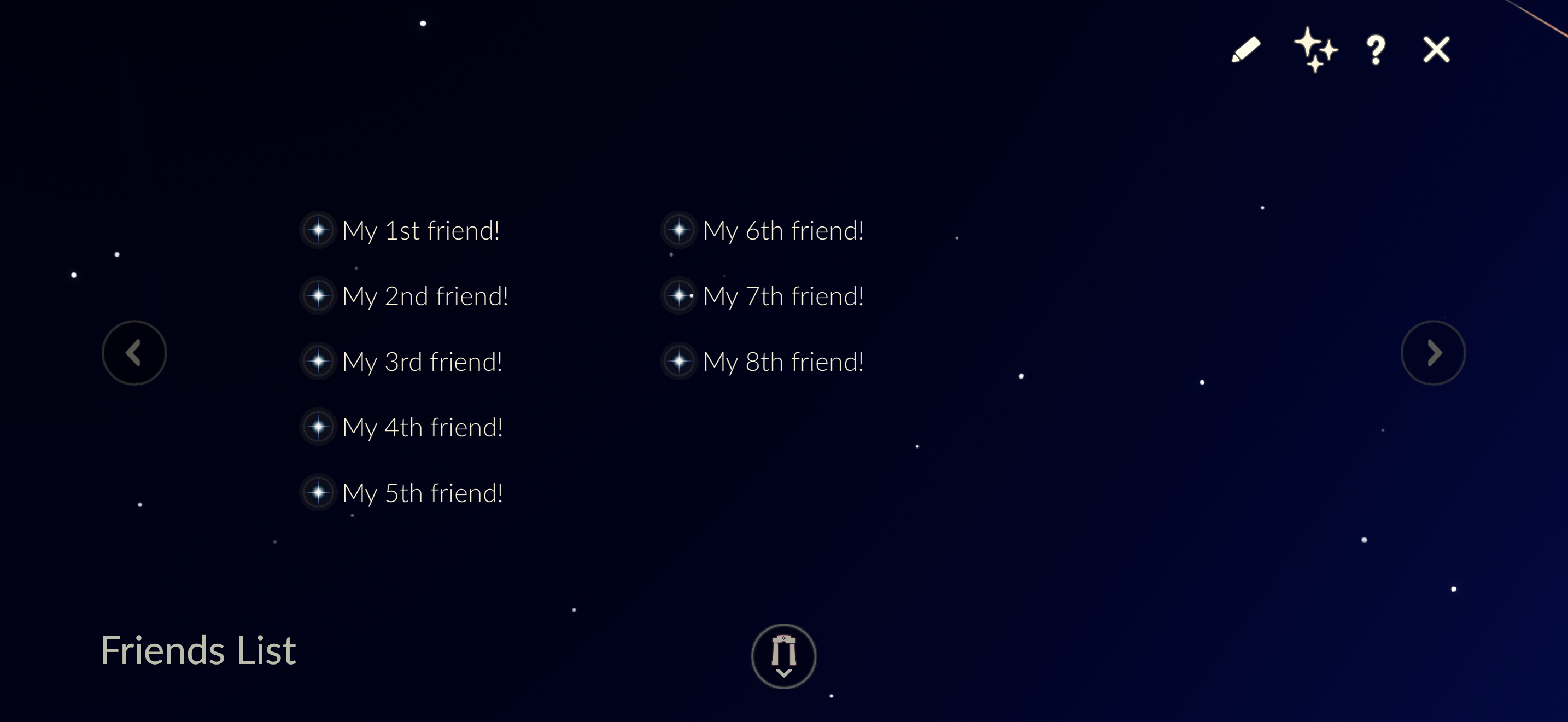
Instead of having friends displayed in the constellation pages, you can now view them in a list. Handy if you would like to see more of your friends, or remove multiple friends at once.
What is the Relationship Menu?
The Relationship Menu is one of the primary ways to interact with your Friends in Sky! Selecting their star in a Friend Constellation will open up their Relationship Menu with the following options:
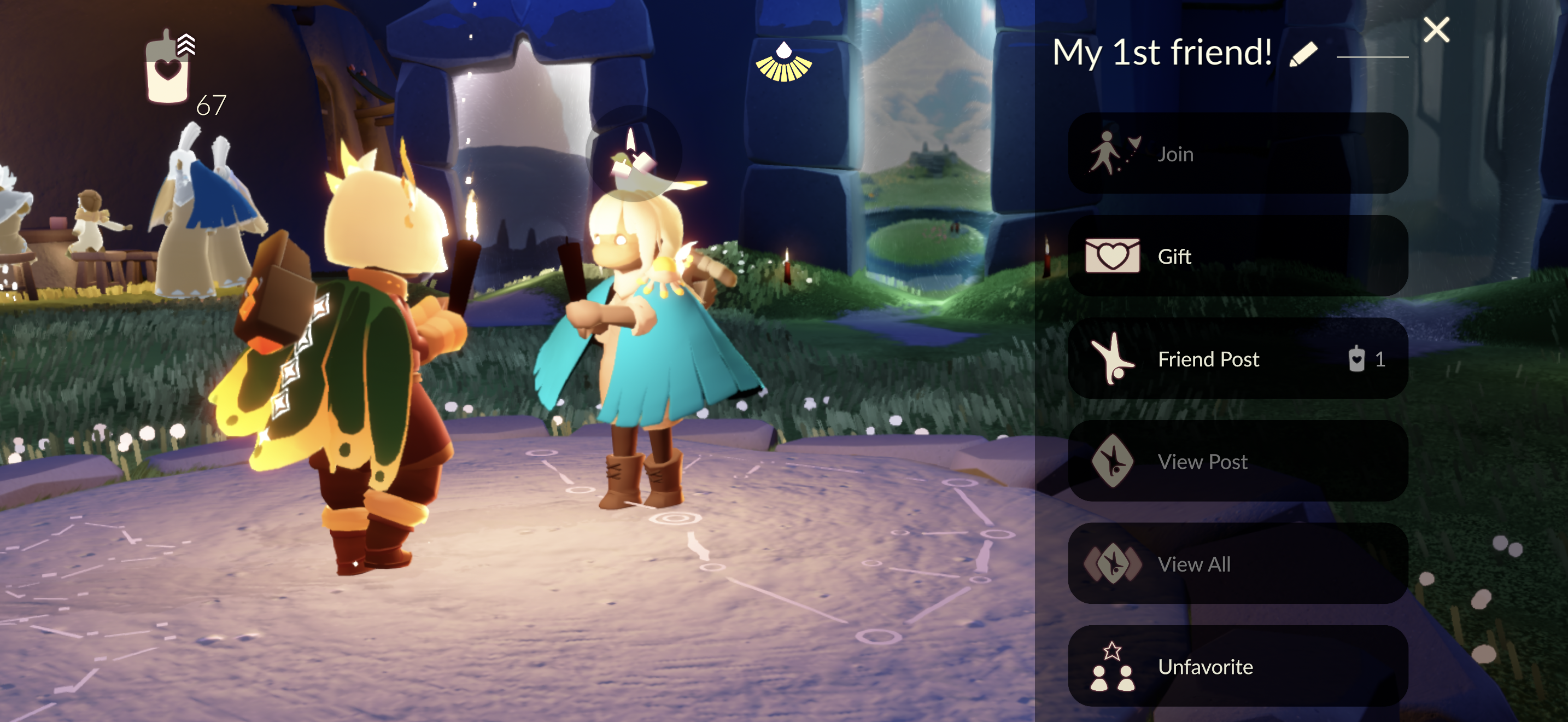
- Give/Receive Light: Send Light to your Friend. How sweet!
- Edit Name: Edit your friend’s name. Note: Friend names are only visible to you; your friends will not see the name you have given them unless you decide to tell them yourself.
- Join Friend: Join Friend groups you together in the same vicinity as your friend and allow you to further interact in the world of Sky!
- Give/Receive Hearts: Send a Heart to your Friend for the cost of three (3) candles. How generous!
- Friend Post: Send a friend post to your friend! Note: Friend Posts are public.
- View Post: Watch the friend post your friend shares with you!
- View all: Check out the available public friend posts!
- Favorite Friend: Adding a Friend as a favorite will open your Constellations to edit your new favorite buddy.
- Manage
- Mute Friend: Blocks this player's chat messages.
- Block Friend: Blocks this friend from interacting with you, in case your friendship hits a rocky moment; you can always unblock to restart interactions with your friend.
- Report Player: Sends a direct report about this player regarding inappropriate behavior or actions in-game. You can also click on any other player, whether currently a friend or not, and report them if necessary.
- Unfriend: Removes this player from your Constellation and disables all relationship abilities between you and the other person (including chat).
- Please note that unfriending should only be used in situations when you are still comfortable interacting with the player. For more information, please see: https://thatgamecompany.helpshift.com/hc/faq/1349-how-do-i-unfriend-someone-in-sky/
- Check the date you became friends in Sky and celebrate together!
Friend Constellation Star Status:
- What do the colors of the different stars mean?
- White (faded): You have not sent this friend Light today
- White (bright): You have sent this friend Light today
- What do the different things on top of a star mean?
- Rotating circle: Your Friend is currently online
- Floating stars: Your Friend has sent you Light; tap or click on their star to collect your Light
- Floating heart: Your Friend has sent you a Heart; tap or click on their star, then click on the Heart Gift icon to receive your Heart
How many Friend Constellations can I create?
You can create a total of six (6) custom Friend Constellations, including, in sequential order:
- Crown
- Umbrella
- Mantas
- Harp
- Spirit Stone
- Crabs
How many friends can fit in one Friend Constellation?
Each Friend Constellation can group together ten (10) individual friends, for a total of sixty (60) friends able to be arranged whichever way you’d like inside your custom constellations.
How many total friends can I have in Sky?
With 0.34.0, the friend limit is capped at 2,000 friends. If you are already at or above this limit, you will need to remove some friends before you can add new ones.
Note that in Constellation View, you can only see 110 friends at a time.
- Up to 10 friends can be added to each of the 6 Friend Constellations for a total of 60 friends.
- Up to 50 friends can be seen on the “main” Friends tab.
- 60 + 50 = Up to 110 friends visible at any given time
Each time you log in to Sky, your “main” Friends constellation will refresh with (if available) new friends you’ve made that haven’t been added to a Friend Constellation. When you remove a friend from any constellation, the previously occupied friend spot will be refreshed with the next friend you’ve made based on the order in which you added each friend.
If you would like to see all of your friends, switch to List View.
How can I delete Friend Constellations?
To delete a Friend Constellation, you must move or remove all of the friends you’ve placed on that Friend Constellation; once it is empty, the Friend Constellation will disappear once you navigate away from the current screen.
How do I rename Friend Constellations?
The default name for Friend Constellations is “Favorites.” You are able to rename Friend Constellations to better help you organize your friends!
Android/iOS:
- Click/tap the Edit button to change the default name from “Favorites” to “Group Name”
- Click/tap the Group Name box to bring up the option to Rename Friend Constellation
- Enter a new name and confirm
- Exit “Edit Mode” by clicking/tapping the Check button on the top right of the screen
Nintendo Switch:
- Navigate to the Friend Constellation you want to rename
- Press the - button to bring up the rename window
- Enter a new name and confirm your selection.
PlayStation 4 / PlayStation 5:
- Navigate to the Friend Constellation you want to rename
- Press the touch pad button to bring up the rename window
- Enter a new name and confirm your selection.
Steam/PC:
- Navigate to the Friend Constellation you want to rename
- Press the Enter key to bring up the rename window
- Enter a new name and confirm your selection.
How do I add friends to Friend Constellations?
You can add friends to Friend Constellations by heading to the Add Friends tab on the leftmost page of the Constellations, selecting the Add Friend button, and sending a one-time friend invite.
Here, you can also check the invites you sent and received, as well as check all the players you have blocked.
How do I rearrange friends in Friend Constellations?
You can move friends between constellations by navigating to the Friend Constellation that has the friend you wish to move and following these steps:
Android/iOS:
- Click/tap the Edit button in the top right corner to enter edit mode
- Click/tap on the friend you want to move
- Swipe to the constellation you wish to move your friend
- Click/tap on an empty star in the Friend Constellation to move your friend to their new spot or swap a friend by clicking on an occupied star
- Click/tap on the X in the upper right corner to exit edit mode.
Nintendo Switch:
- On the Friends tab, press Y to enter edit mode
- Click/tap on the friend you want to move
- Navigate to the constellation you wish to move your friend
- Click/tap on an empty star in the Friend Constellation to move your friend to their new spot or swap a friend by clicking on an occupied star
PlayStation 4 / PlayStation 5:
- On the Friends tab, press Square (⃞) to enter edit mode
- Click on the friend you want to move
- Navigate to the constellation you wish to move your friend
- Click on an empty star in the Friend Constellation to move your friend to their new spot or swap a friend by clicking on an occupied star
Steam/PC:
- On the Friends tab, press the F key to enter edit mode
- Click on the friend you want to move
- Navigate to the constellation you wish to move your friend
- Click on an empty star in the Friend Constellation to move your friend to their new spot or swap a friend by clicking on an occupied star