
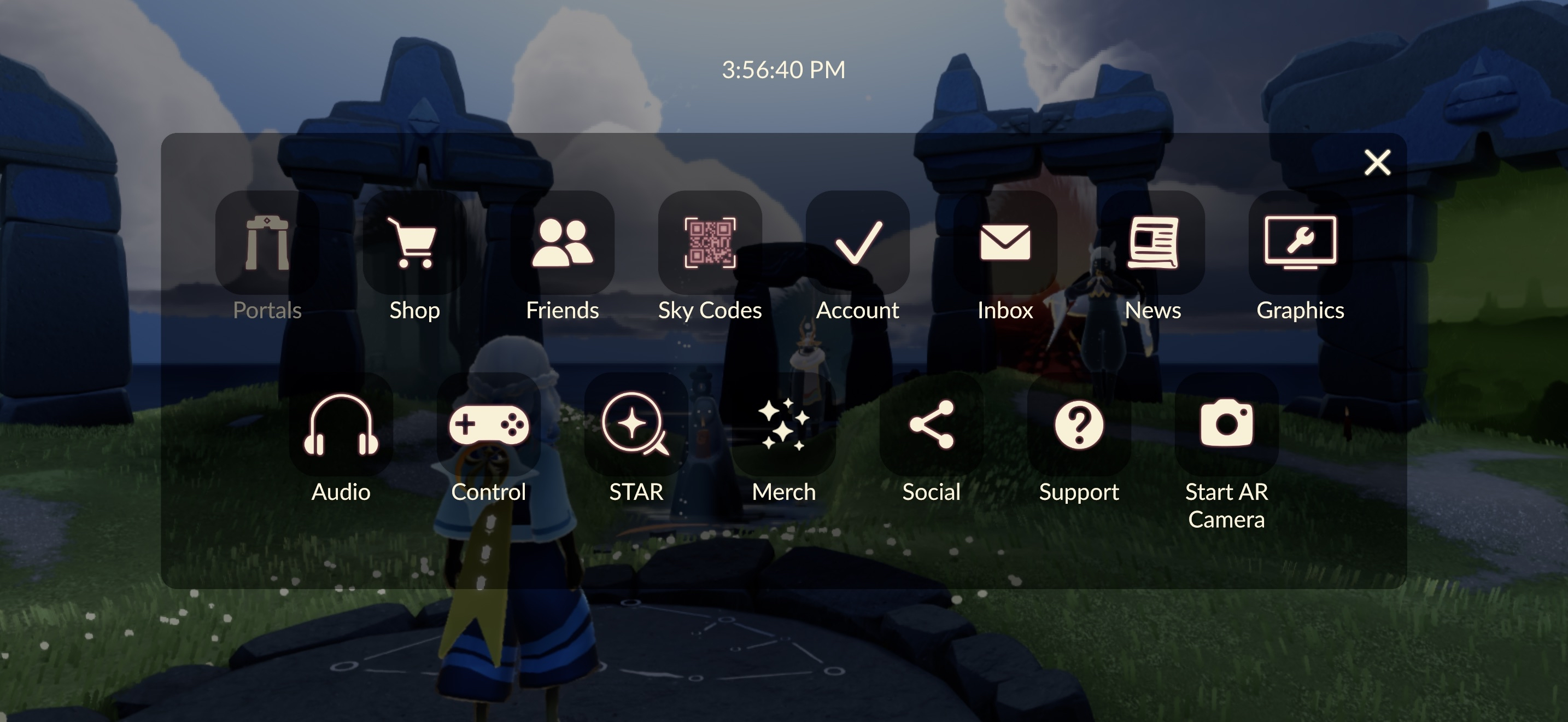
The Utility/Settings menu can be accessed in the following ways:
- Mobile/Touchscreen:
- Tap the top-right of the screen to make the cog icon appear.
- Tap the cog icon to open the settings menu.
- Controllers/Gamepads: The settings can be accessed by pressing the Menu/pause button on your controller. The location of this button will vary depending on the controller’s button layout.
- Nintendo Switch Joy-Cons: Press the + button on the right Joy-Con.
- PlayStation Controller: Press the Options/≡ button on the top-right of the controller.
- Xbox Controller: Press the ≡ button on the controller.
- Steam Deck: Press the ≡ button on the top-right of the device.
- Keyboard and Mouse: Press the Esc key.
Once you’ve opened the menu, you’ll see different icons that allow you to access various options. Please see below for a summary of each option available.
Note: If you do not see one of the listed options, your platform or device may not support the specific feature.
Portals: Clicking the Portals button will teleport you to your selected Home location, either Home Space or Aviary Village.
Shop: The Shop is where you can browse In-App Purchase (IAP) items such as Candles, Season Passes, and event & platform-exclusive items like the Switch Starter Pack.
Friends: This button allows you to create Sky Codes to add friends. You can also review existing invites you have sent and the ones you have received from other players.
Sky Codes: Scan or type in Sky Codes to add friends or redeem rewards from community events.
Account: Under Account, you can find information about your Linked Game Service accounts for saving game progress, access your Sky ID (for Player Support requests), and submit a request to have your account deleted. The Sign out button is present here as well.
Inbox: The Inbox contains messages and alerts sent directly from us at TGC.
News: In the News section, you can view the Event Calendar, where dates for different activities in Sky and their locations are shown. You can also switch to the next Tab to see the latest news about the game.
Graphics: The Graphics settings allow you to change the Resolution and Frame rate (FPS - Frames per second) of your game, increasing performance on your device. You can also change some display settings using this option.
- Resolution Settings:
- Energy Saving Mode (Low Resolution)
- Default Mode (30 FPS)
- High-Performance Mode (60 FPS)
- High Def Mode (30 FPS)
- FPS Settings: (This setting takes priority over Resolution Settings)
- Low FPS (15 or 20 FPS)
- High FPS (30 FPS)
- Max FPS (60 FPS)
- Miscellaneous settings:
- Motion Blur (Y/N)
- Fade to Black Only (Y/N)
- Skip All Skippable Cutscenes (Y/N)
- HDR Settings
- Experimental Features
Audio: This menu allows you to customize the audio levels in Sky, including the Music, Sound Effects, and volume of Musical Instruments. You can also turn on or off subtitles and adjust the volume for the In-Game Cinema.
Control: The Control tab allows you to adjust how you interact with the game. Here you can change the:
- Touch Settings
- Enable One or Two-handed Mode
- Flip sides (movement/camera)
- Invert camera
- Invert Flight
- Enable vibration
- Mouse & Keyboard Settings: (This setting is only available if keyboard & mouse are detected)
- Invert Camera
- Invert Flight
- Mouse Sensitivity
- Camera Zoom Speed
- View and Customize Controls
- Controller Settings: (This setting is only available if a controller is detected)
- Invert Camera
- Invert Flight
- View and Customize Controls
- Instrument Settings: (when to see other players’ notes)
- Free Play Mode
- Joined Sheet Music Sessions
STAR: Scan and register Star Pins and other STAR merchandise from ThatSkyShop to activate fun in-game effects.
Merch: This option takes you to thatskyshop.com, Sky’s official merchandise store.
Social: Access all of Sky’s official Social Media pages, including Facebook, X, Instagram, Discord, YouTube, TikTok, & Twitch.
Support: This option takes you to our Support site, where you can find both Patch Notes and FAQs about the game. You can also submit a ticket to contact our Player Support team if you encounter any issues here in Sky.
Start AR Camera: This button activates the Sky AR Camera feature, allowing you to bring your Sky Kid to the real world.